
Voice Chat
Voice chat lets you talk to other players with your microphone instead of typing.
Right now only Party voice and Guild voice are supported.
How to use
Click the voice menu button in the bottom action bar:
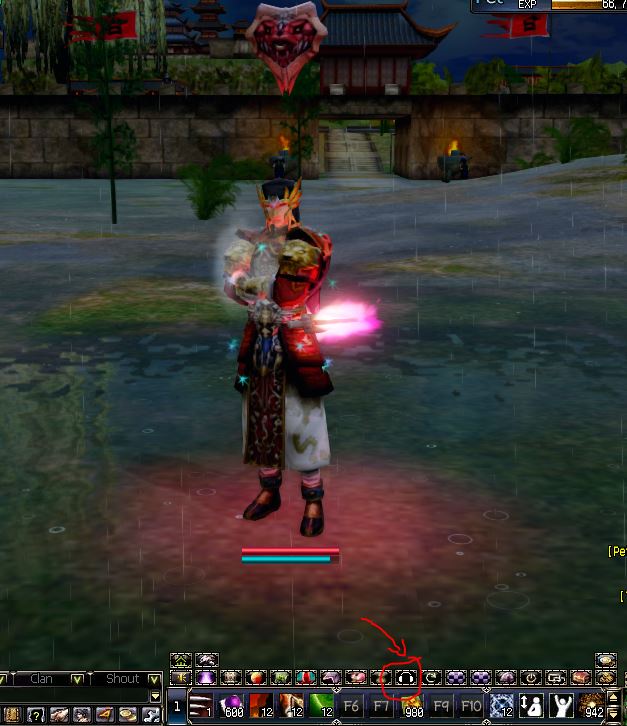
The Voice panel opens. Configure it to your setup:
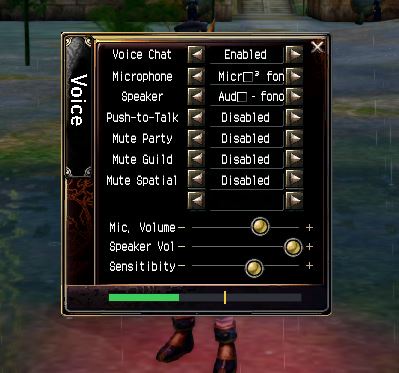
Options
| Option | Values | What it does |
|---|---|---|
Voice Chat |
Enabled / Disabled | Master switch for voice chat. Disabled means you neither send nor hear voice. |
Microphone |
Device list | Selects the input device you talk into. Use the arrows to cycle through your devices. |
Speaker |
Device list | Selects the output device you hear other players through. |
Push-to-Talk |
Enabled / Disabled | Enabled means your mic only transmits while you hold the push-to-talk key. Disabled means the mic opens on its own whenever you speak loudly enough (see Sensitivity). |
Mute Party |
Enabled / Disabled | Enabled mutes the party voice channel. You stop hearing your party. |
Mute Guild |
Enabled / Disabled | Enabled mutes the guild voice channel. You stop hearing your guild. |
Mute Spatial |
Enabled / Disabled | Mutes spatial (nearby player) voice. Spatial voice is not active yet, so this has no effect for now. |
Sliders
| Slider | What it does |
|---|---|
Mic. Volume |
How loud your microphone is sent to other players. Raise it if people say you are too quiet. |
Speaker Vol |
How loud other players sound to you. |
Sensitivity |
How loud you must speak before the mic opens when Push-to-Talk is disabled. Lower it if the mic misses the start of your sentences, raise it if it picks up background noise. |
The bar at the bottom of the panel is your microphone level meter. Talk into your mic and watch it move to confirm the game is hearing the right device.
Notes
- Voice chat is only available in Party and Guild channels at the moment.
- If nobody can hear you, check that
Voice Chatis Enabled, the correctMicrophoneis selected, and that the level meter reacts when you speak. - If you have a noisy room, use
Push-to-Talkinstead of raisingSensitivity.